
How Do I Place an Order?Updated 5 days ago
IMPORTANT: Once an order is placed, changes are usually not possible. After you check out, please review your confirmation email right away. Give it a few minutes, then use the Manage your order link to see whether updates can still be made. If you need more help, that page will connect you with our Care team
Find a Product and Add it to Your Cart
- Find “Shop” in the horizontal menu next to our company name, UrbanStems, and click it.

2. Click the category you’d like to shop in. This will bring you to a page where you can browse the products.
- Use the menu to filter by category, and the left-side filters for price, color, and more.
Available products are determined by your recipient’s shipping address. Make sure to enter the recipient’s details in the “Sending to” and “Delivery Date” fields to see accurate options.
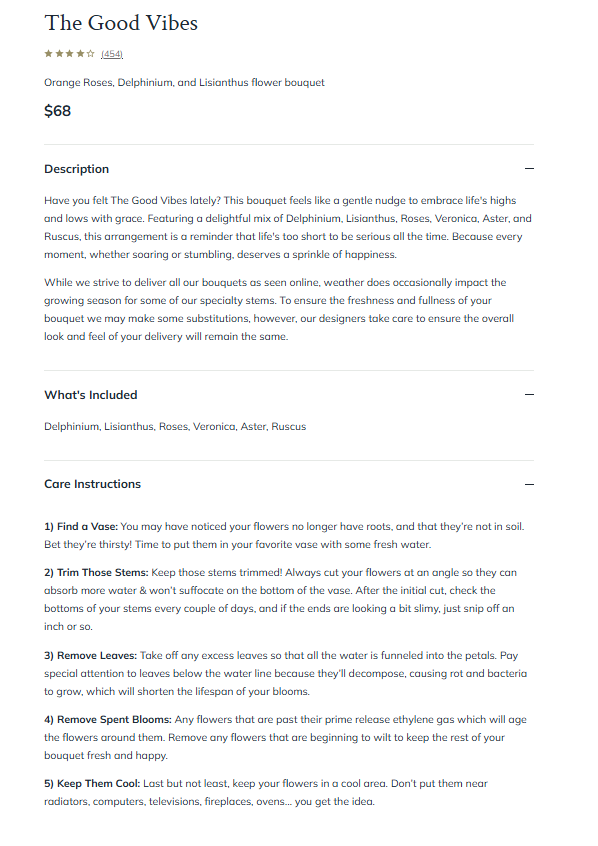
Click on a product to view its description, what’s included, and care instructions. On the product page, you can also select “Add a Vase” and choose additional gifts from the “Make It Extra Special” section. When you find the one you’d like to purchase, click “Add to bag.”
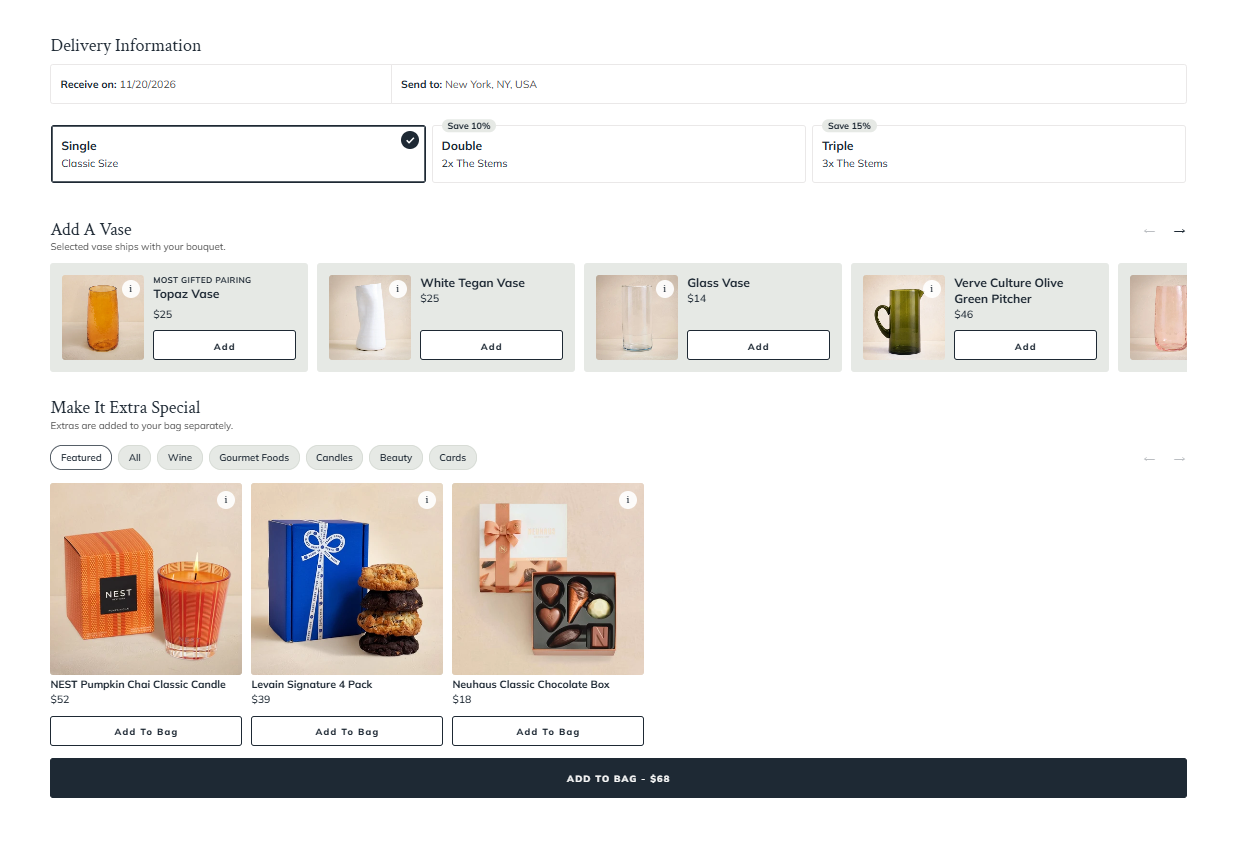 Proceed to checkout or click the “x” button to continue shopping.
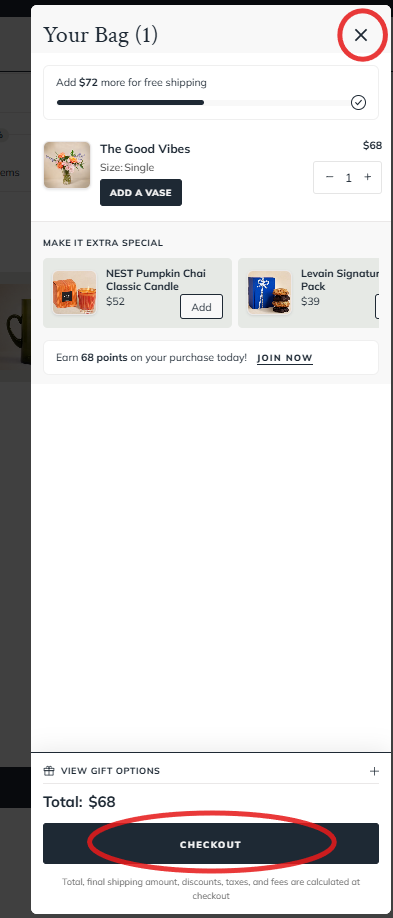
Checkout
For guest checkout, enter your email address in the “Contact” field. You can also click “Sign in” and use your account email to access saved addresses and payment methods, or to redeem available store credit and rewards.
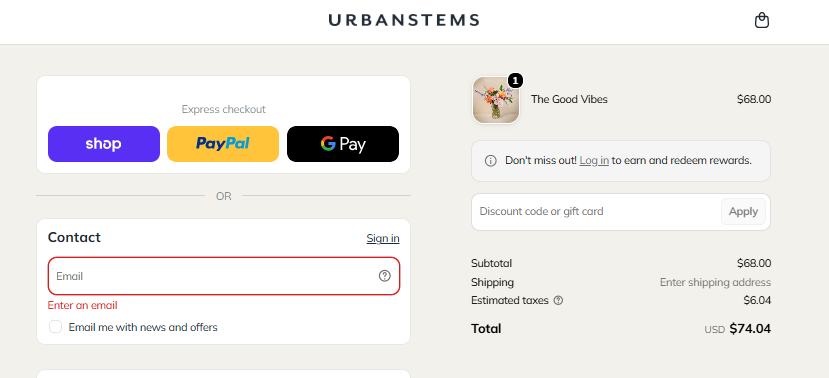
Fill in the Delivery Address section. You can also choose a Saved Address, or click “Use a different address” if needed.
Confirm your delivery details and shipping method in the Shipping section.
- Go to the Payment section:
- Enter your card details and billing address, or click “More payment options” to use Shop or PayPal.
- Apply store credits or redeem loyalty points, when available. (These are not available for guest checkout.)
- Enter a promo code in the “Discount code or gift card” box, when available. Promo codes cannot be combined with other discounts.
- Use the Gift Options section to add your card message. Emojis and special characters are not supported, and messages can be up to 160 characters across 5 lines. You can also add a video message or a birthday box here.
- Review your order details and click “Pay Now.”
“Checkout as a Guest” means you can place an online order without signing in to an UrbanStems account. You won’t be able to easily view or manage past orders on the website.
Review Your Order Confirmation
Review your order details on the confirmation page.
You’ll also receive a confirmation email with a “Manage your order” link for easy access.
To let your recipient know a gift is on the way, use the “Send a Preview” section on the confirmation page:
Click “Yes, Please!”
Enter your recipient’s name and email address, and confirm your name.
Add a personal message of up to 160 characters.
Choose the date you’d like the email to be sent.
Check “I would like a copy of the email being sent to the recipient” if you’d like a copy.
Click “Send” to submit your notification.
If you’d prefer to keep the gift a surprise, select “No Thanks.”
Note: If you run into any issues, please contact customer support.