
Managing Your SubscriptionUpdated 8 days ago
- Quick Delivery Updates
- Choosing a Different Arrangement
- Editing Delivery Details
- Pausing or Canceling Your Subscription
If you'd like to pause your subscription, reschedule your next delivery, change the card message, update the delivery address, update payment method, or choose your next arrangement, simply login to your UrbanStems account and navigate to the “Subscriptions” Tab. From here, navigate to the active subscription you want to update and you’ll see your next delivery date:
Quick Delivery Updates
On the Subscriptions page — you’ll see 4 quick options to choose from: 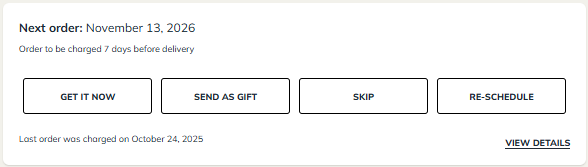
Get it now allows you to place the order for the next available delivery immediately.
Send as gift lets you send the upcoming order as a gift, you simply enter the recipient’s shipping details; the order will be processed immediately, and future orders will remain on their current schedule.
Skip pushes the current order to the next delivery date in your subscription cycle.
Re-schedule lets you choose a specific date for your next delivery, whether you’d like to move it back a few days, a week, or a month..
Choosing a Different Arrangement
Want something different or specific for your next subscription delivery?
You now have the option to choose the next arrangement in your subscription delivery.
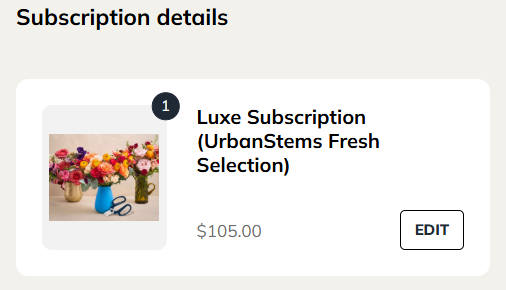
1. Under Subscription Details, click "Edit" beside the bouquet.
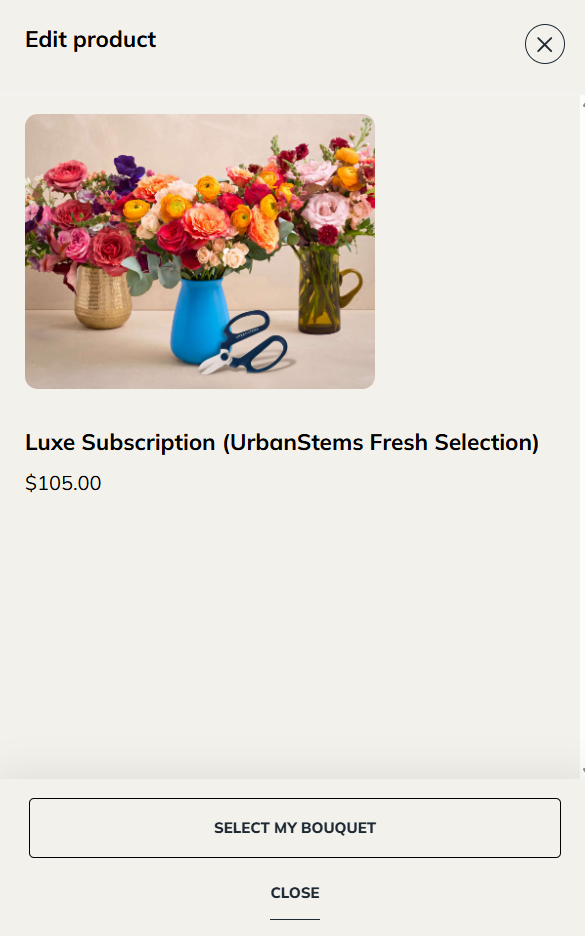
At the bottom of the window, click "Select My Bouquet" — any available arrangements for the selected delivery date within your subscription tier will appear.
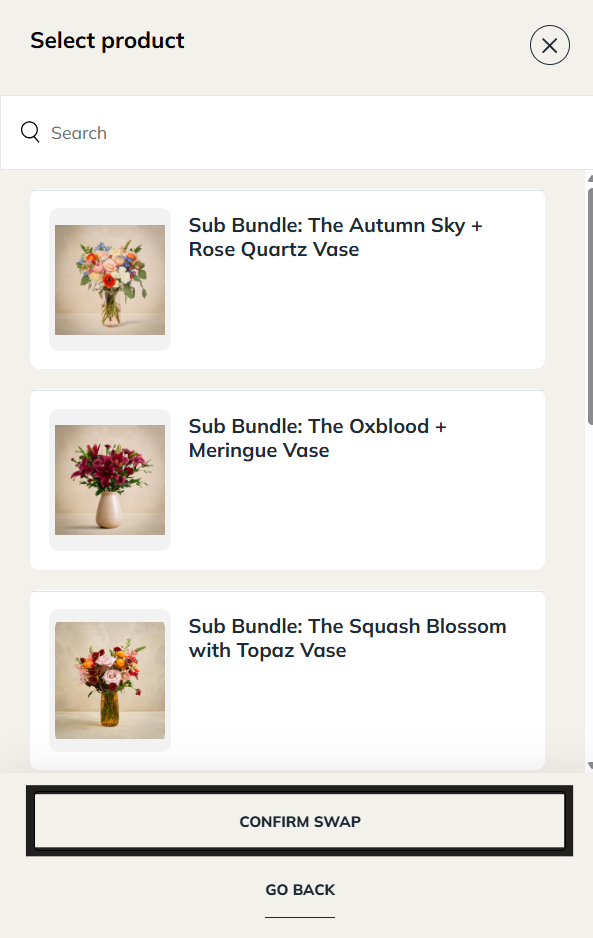
Choose a different bouquet from the options, and click Confirm Swap to save the changes.
Editing Delivery Details
Below the Subscription Details, you'll see fields for Gift notes, Discount code, Subscription Plan, Shipping Address, and Payment Details.
You can make changes until 7 days prior to your next subscription delivery.
Editing Gift notes: click "Edit" to change the message on the notecard included with your bouquet. *Please note: Messages are limited to 160 characters. Emojis and special characters are not supported.
Change Subscription Plan: Click “Edit” under “Subscription plan” to change the frequency of delivery.
Change Delivery Address/Recipient: If you’d like to change the delivery address or recipient for the next order in your subscription, update these details under "Shipping Address. Click "Edit" to modify the recipient’s name and address.
Edit Payment Method:
If paying with Shop, PayPal, or Google Pay and you wish to change to card-based payments (or vice versa) — under Payment Details click Update to change the current payment information
To edit card information only — under Payment Details choose Update to add a new card or choose from another saved card.
Pausing or Canceling Your Subscription
Pause Your Subscription:
If you need a break, click "Pause Subscription" located at the bottom of the page.
- Choose a pause duration of 1, 2, or 3 months based on when you’d like deliveries to resume.
Canceling the Subscription:
For ongoing subscriptions, you can cancel your subscription by going to the bottom of the active subscription page and selecting "Cancel Subscription."
For prepaid (fixed) subscriptions, which have a limited number of deliveries, our care team can assist you with the cancellation. Please send an email to [email protected] and include the email address you used to place the subscription order.